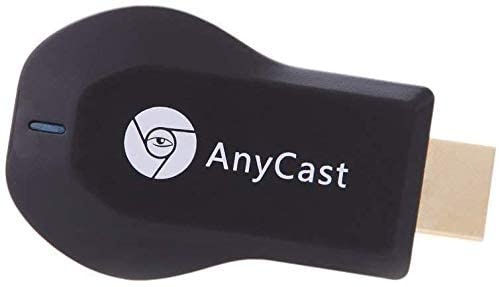
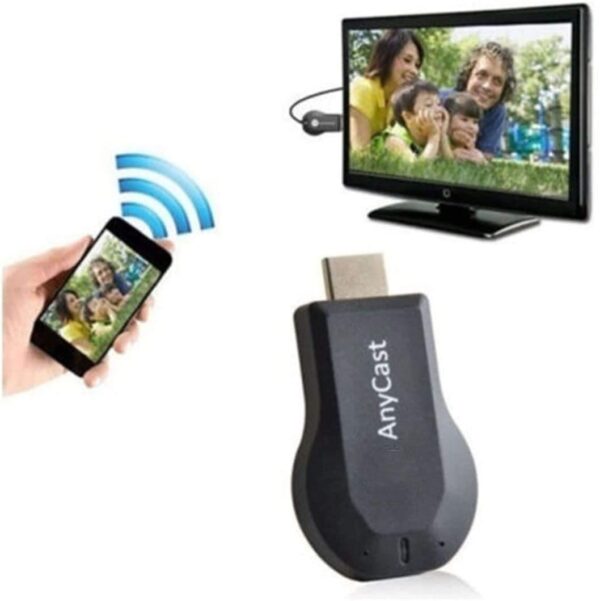
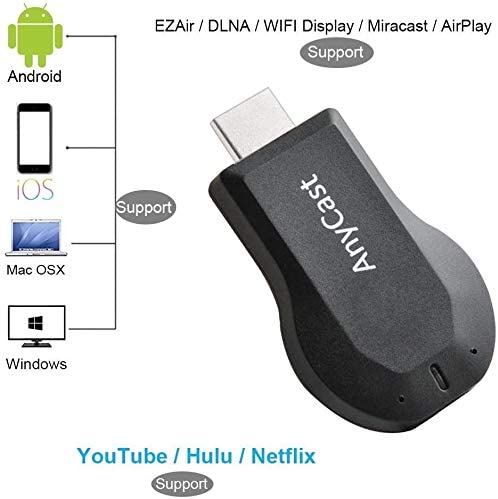
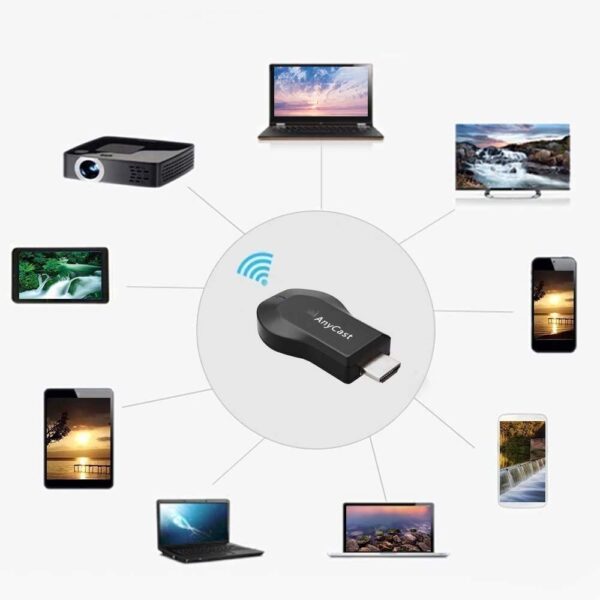
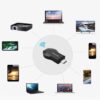
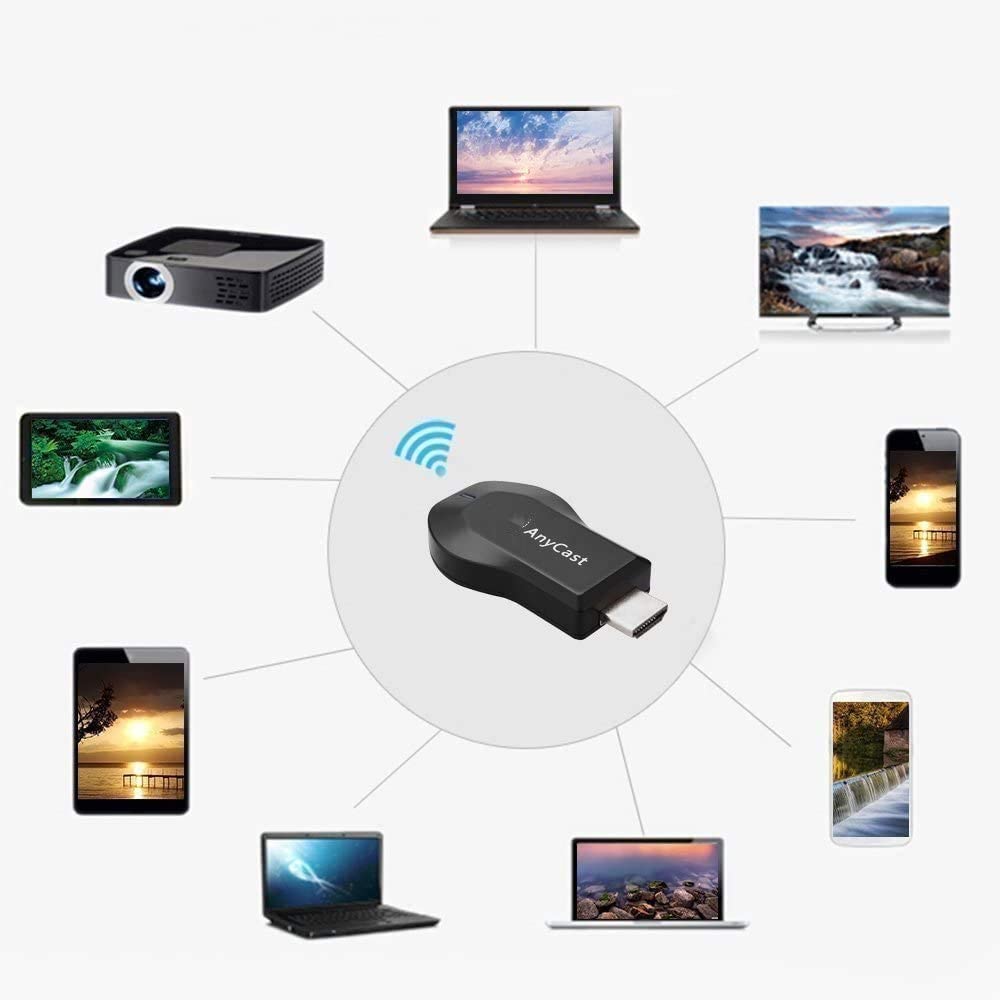
AnyCast M9Plus WiFi Display Receiver is compatible with smartphones and tablets such as iPhone, Samsung, Sony, iPad with Android 4.2 and iOS 7 above, eg iPhone 11,X,8/8 Plus,7/7 plus,6/6 plus,5/5C/5s, 4S/4, SE, iPad 2/3/4/iPad mini/Air/Pro, Samsung/Google/Nokia/HTC/LG, etc. With this you can easily share high-resolution media files,PowerPoint, Excel, Word, PDF and images to HD TV/monitor /beamer.
Step 1: Get SSID and PSK/Password on Anycast page;
Step 2: Connect AnyCast in WiFi Setting on iPhone;
Step 3: Go to a browser and input 192.168.203.1 to come to the setting menu(You can connect your home wifi here by clicking “Internet” and Choosing your home Wifi to connect);
Step 4: Pull up the Control Center on iPhone and turn on Airplay, and select AnyCast dongle to start mirroring.
More Features:
1.Anycast miracast adapter, NO NEED MODE SWITCHING. (Remark: Please be sure it supports MiraCast when using Windows system).
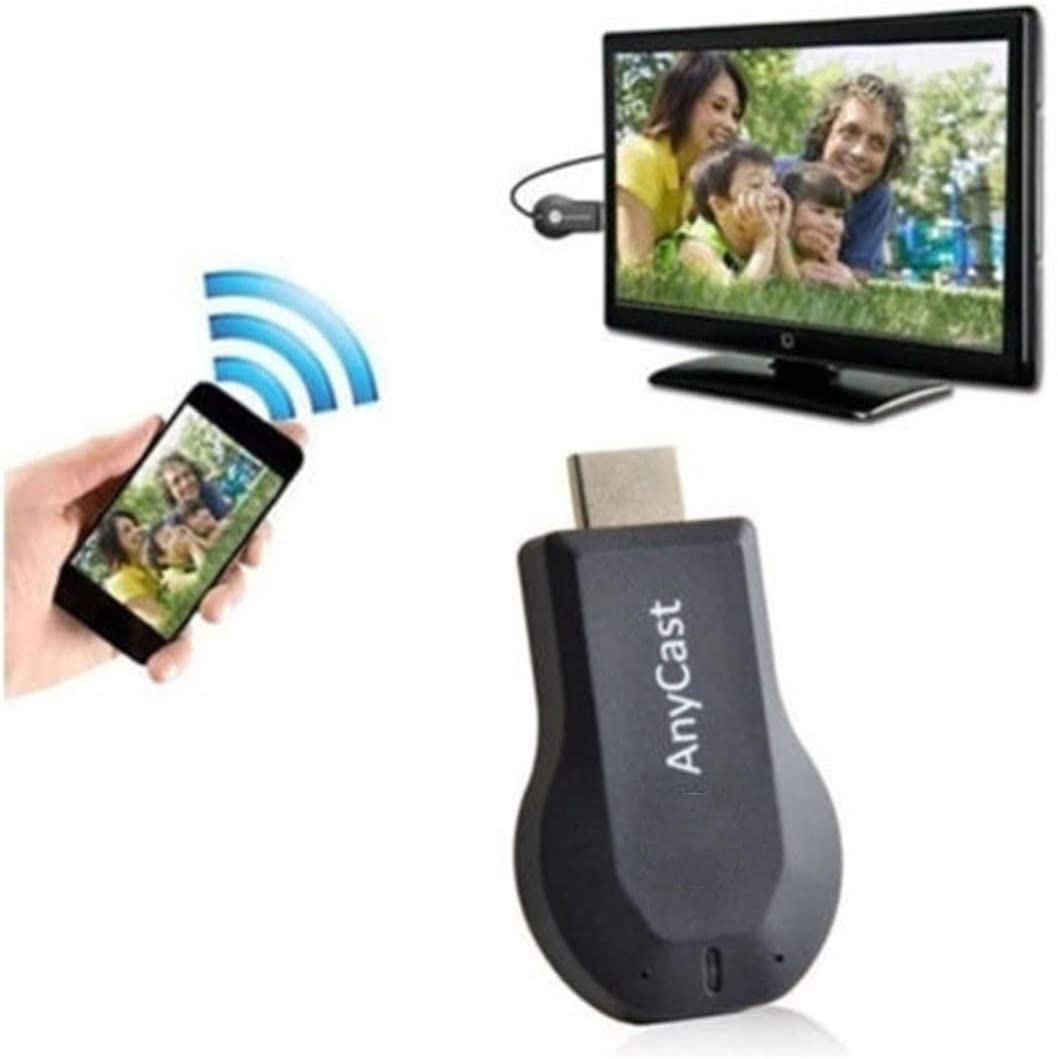
2.This wireless display dongle mirrors smart Android devices (Photo/video/music/Word Excel PPT PDF/ online TV/internet) to your big HDTV (up to 1080p).
3.Easy Setup: Only 3 steps to enjoy media files on the large screen: Plug>MiraCast>Mirroring. No additional app or driver on your smartphone or tablet is required.
4.Support online upgraded and compatible with chromecast.
Please note:
AnyCast WiFi display dongle is NOT COMPATIBLE With NETFLIX, HULU, Directv, Amazon Prime videos and other paid subscription videos.
Please read the operating instructions carefully.
Package Includes:
1 x Anycast M9 Plus Wireless WiFi Display Receiver
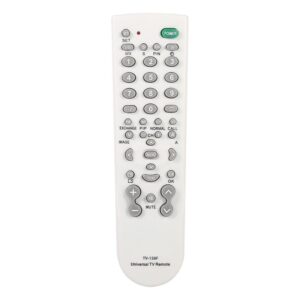
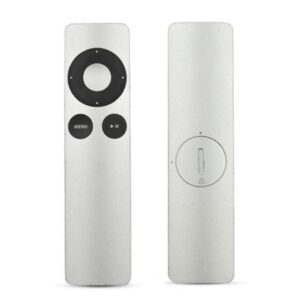 Remote Control for A-pple 1 2 and 3 Generation Televisions Tv for Iphone
 Remotes
 Remotes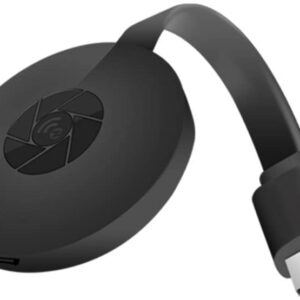
There are no reviews yet.